Questions and answers
Why does the screen flicker at regular intervals?
The screen flickering serves to refresh the screen content. At regular intervals, the display must completely renew the screen content through a full refresh to remove ghosting and refresh the contrast. This involves inverting the image content, clearing it several times, and then completely reconstructing it.
How can I reduce screen flickering?
The timing of a full refresh depends on several factors. For the first 5 minutes after restarting the device, a full refresh occurs every minute to allow the display to adjust to its temperature from a cold state. A full refresh is also performed after each page change. This applies to the last page viewed, provided it is displayed for at least 4 seconds. This page-change behavior can be disabled using the Refresh parameter. However, this has the disadvantage that ghost images from older pages cannot be completely removed. Additionally, you can define the general interval at which a full refresh is performed. The cycle time can be set between 1 and 10 minutes using the Full Refresh Time parameter. The full refresh can also be accelerated using the Fast Refresh parameter. With this setting, full refreshes occur more quickly. Descriptions of the refresh settings can be found in the chapter Config - OBP Display. The screen refresh settings also affect the screen contrast in sunlight.
Why does the display fade in sunlight?
In extreme sunlight, the e-paper display heats up, causing a loss of contrast during partial screen refreshes. The image becomes increasingly gray, and some lines appear on the display. The display itself is not defective. This issue can be resolved with a full refresh.
What can be done about it?
The effect can be reduced by avoiding direct sunlight on the display. Another way to improve performance is to increase the frequency of full refresh cycles. Chapter Config - OBP Display contains a table of recommended settings under various conditions. The device’s power consumption also affects contrast loss, as heat generated within the device contributes to the temperature increase.
What options are there to reduce electricity consumption?
Power consumption can be reduced by setting the access point to shut down automatically after a predefined period. Additionally, the processor clock speed can be reduced. Some devices, such as the OBP60, have special power-saving functions via the Power Mode parameter. Details on power-saving functions can be found in the Config - OBP Hardware section.
Why doesn’t my OBP60 start when I apply power?
The problem lies in the soft-start behavior of the step-down converter, which converts the 12V supply voltage to a 5V device voltage. The soft-start duration is limited to 5 ms. During startup, a relatively high current is drawn briefly because the internal capacitors are being charged. If the line resistance is too high, the startup process does not proceed quickly enough, and the step-down converter fails to start. It then remains in an undefined state and cannot exit it. For power supply cables, conductor cross-sections of 0.5–0.75 mm² are recommended. The cable should be connected directly to the control panel and be as short as possible, with no additional branches. Excess cable length behind the panel should be avoided, as should tapping power from other devices. As a workaround, an electrolytic capacitor of approximately 470–1000 µF can be connected in parallel to the 12V input at the rear. This should reduce the problem.
Why aren’t WiFi connections working properly?
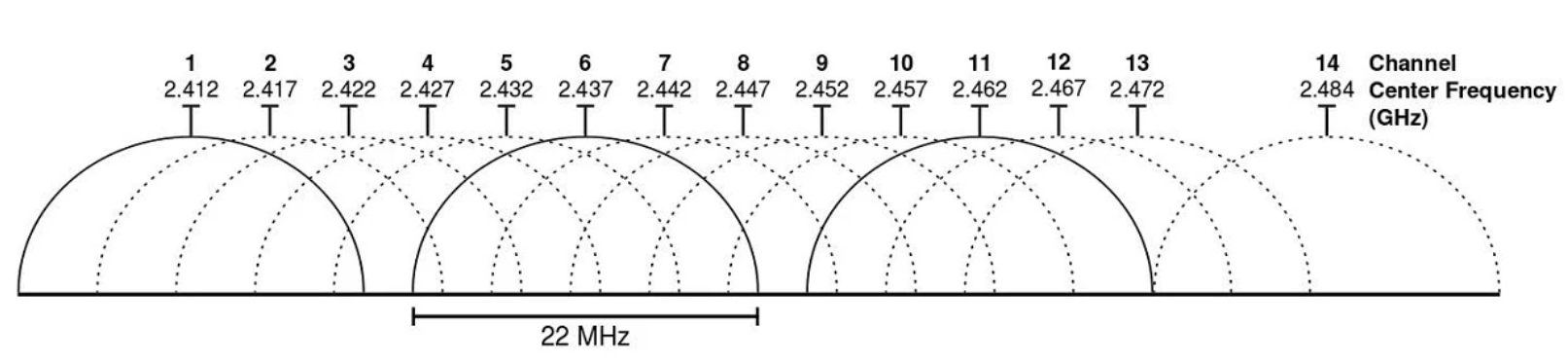
WiFi connections are limited to the 2.4 GHz frequency band. Other users outside your access point use the same frequency band and must share the bandwidth with them. In larger ports, the bandwidth of all channels can become saturated by too many users. In this case, data transmission delays occur. You should then expect a sluggish response time to the measurement data on the display when the data is transmitted via WiFi connections. Wired data transmissions from bus systems such as NMEA2000 or NMEA0183 are not affected. Selecting channels 1 and 13 for transmission can help somewhat, as they are located at the edges of the 2.4 GHz frequency range and have only one adjacent channel.
The GPS isn’t getting a fix on the OBP60. What can I do?
On the OBP60, the GPS antenna is located on the back of the display. If there are metal parts or surfaces directly behind the display, GPS reception may be obstructed or impossible. Ensure that no large metal parts or surfaces are located behind the display. If reception cannot be improved, an external GPS antenna can be used. Position the GPS antenna where it has a clear view of the sky. This will provide the best GPS reception and high positional accuracy. In some cases, power supplies with switching regulators, such as those used in LED lights, can cause interference that may affect GPS signal reception. In such cases, systematically try to identify the source of the interference by switching devices on and off and observing the effect on GPS reception quality.